Skip Navigation

School Announcement Detail Page

Creating an Announcement Detail Page

Creating an Announcement Detail Page Tutorial With Screenshots

Creating an Announcement Detail Page Video Tutorial

Before You Begin

  1. Make sure you are in your school's project in the lower left corner.Project-Toolbar.png
  2. If you plan to use your own picture or pdf flyer we strongly suggest uploading and publishing those items before creating your announcement. This will reduce the common error of publishing the new page without publishing the media.

How to Add & Publish Media (pictures, pdf files, videos, etc.)

Do You Have an Announcement Directory Page

Note: To create an Announcement Detail page you have to create it under an Announcement Directory page type. The Announcement Directory page may have a different name, but the page type is correct. Click on your Announcement page. Click your View Options button in the upper right corner and change to the All Properties view. In the grey area above the content for your page you will see the page type.
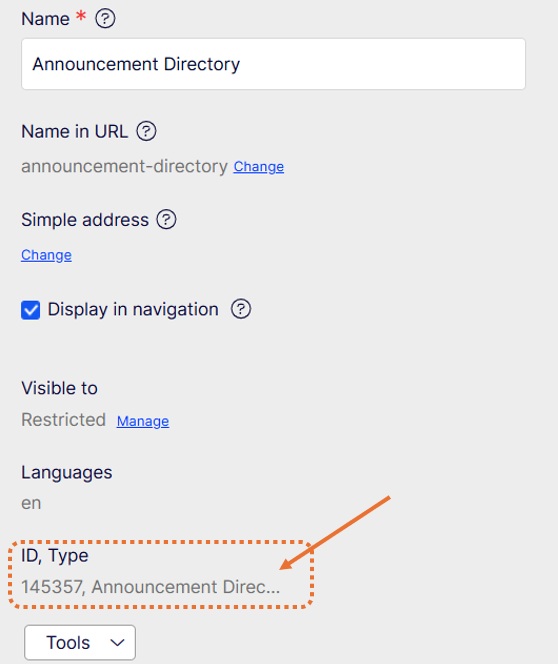
announcement-directory-page-type-information-all-properties-view

If you have the correct page type you can proceed. If you don't have an Announcement Directory Page you can create one. 

How to Create an Announcement Directory Page

Create the Announcement Detail Page

Creating an Announcement Detail Page Video Tutorial
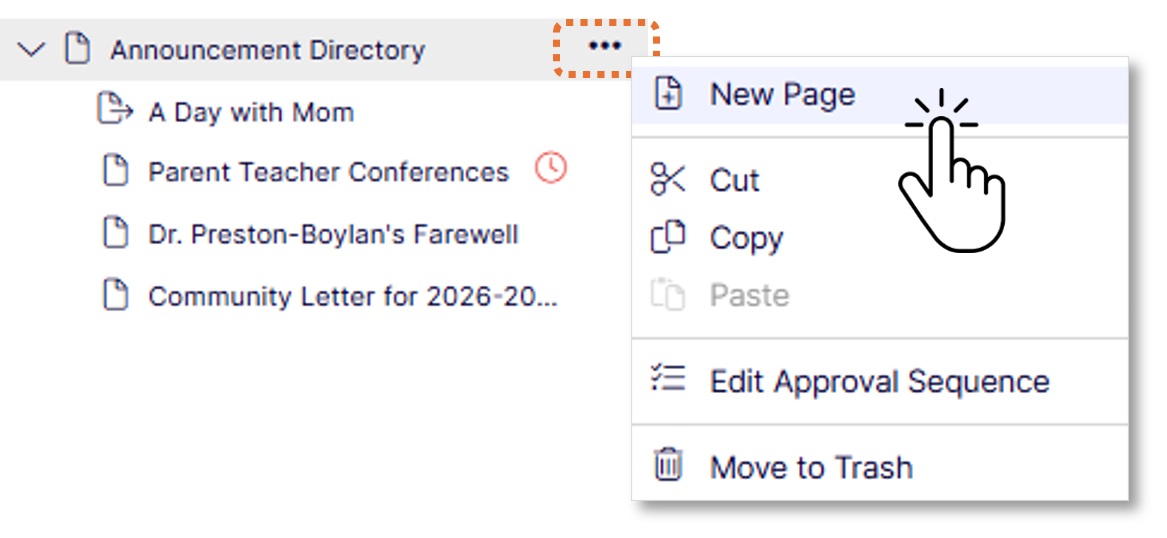
  1. Click on or hover over Announcement Directory Page Options menu and select New Page.

    announcement-detail-page-new-page
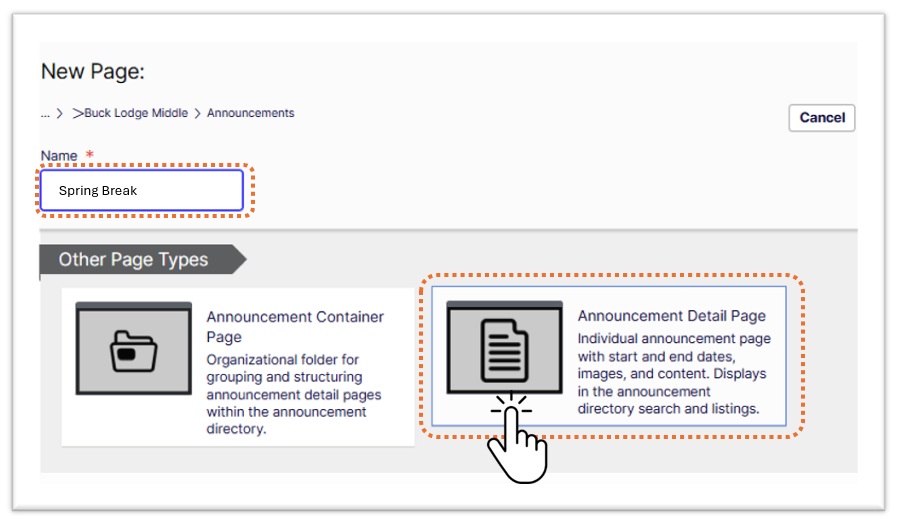
  2. Enter a page name
    • We recommend a simple page name without dates for recurring events because the page name becomes the URL and so the page can be easily again.
    • Example: "Back to School" instead of "Back to School 2026"
    • You can use the page Title field after you create it to expand on the title and it will not affect the URL.
  3. Select Announcement Detail Page
    announcement-detail-page-enter-page-name-select-announcement-detail-page
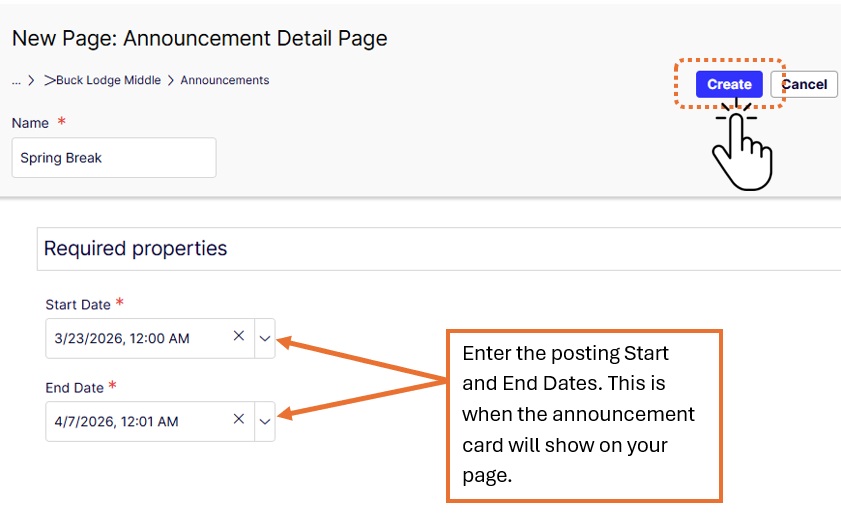
  4. Enter the posting start and end dates for your page. You can modify these dates later in the Content tab.
  5. Click Create
    announcement-detail-page-enter-dates-click-create
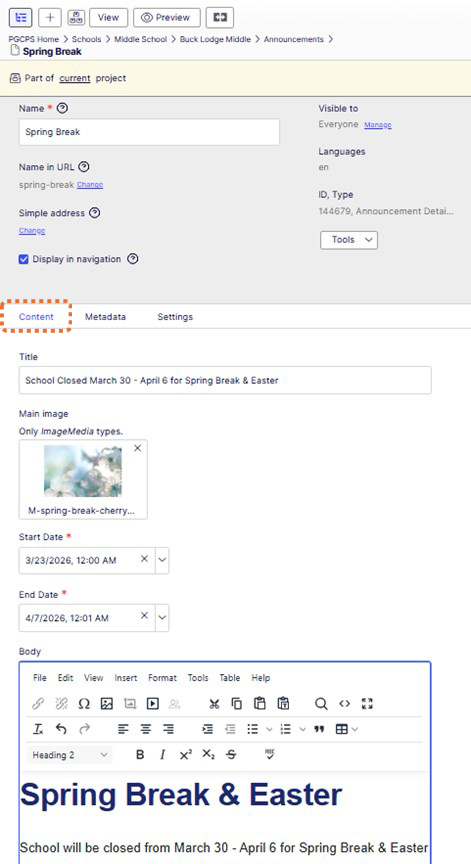
  6. Add content to your page
    Content Tab Fields in All Properties View Example
    announcement-detail-page-content-fields
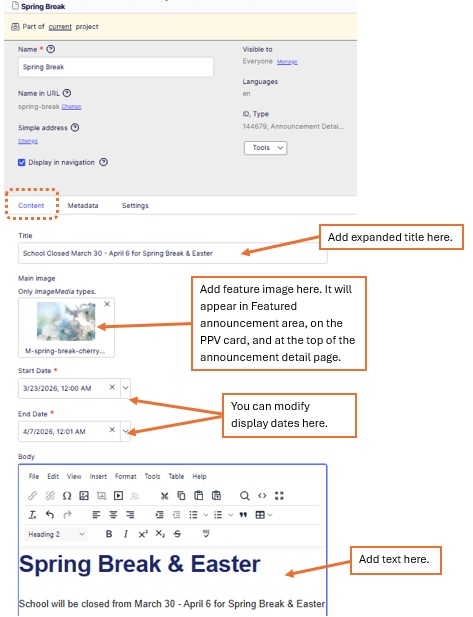
    • Title - Enter a longer page title if desired
    • Main image - this will show on the card and in the featured announcement area
    • Start and End dates - modify as needed at any time
    • Body - type or copy and paste text and format as needed

      Content Tab Fields in All Properties View with Labels
      announcement-detail-page-content-fields-with-descriptions
  7. Publish any assets (pictures or documents) you have uploaded and publish your page.
    • Publish any documents or images first and then publish your Announcement Detail page
    • OR Use Project Overview to Publish to publish multiple items at once
  8. Do you want to modify the look of the card?
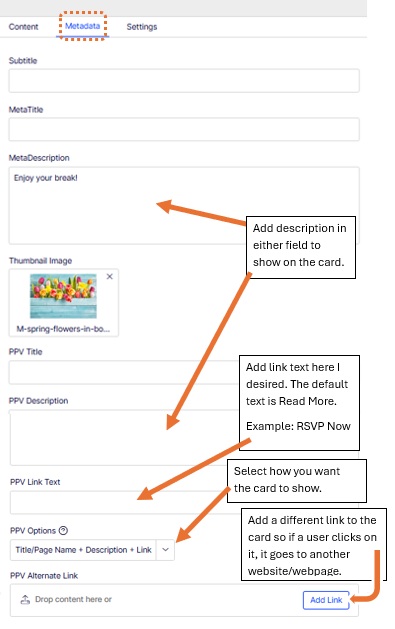
    • The card title and picture come from the Content tab fields unless you edit the fields in the Metadata tab.
      • Add extra details in either the MetaDescription or PPV (partial pave view or card) Desciption fields
      • Add a different image to show on the card to the Thumbnail image field. (thumbnail or mobile images recommended)
      • The default card link text is Read More. If you want different text for the link you can add it to the PPV Link Text field. (Example: RSVP Now)
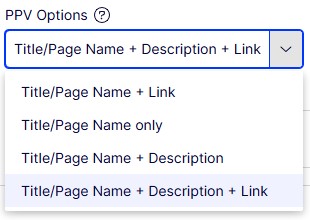
      • Modify how you want the card to appear on your Announcement Directory page by changing the PPV Options.
        announcement-detail-page-PPV-options

      • You can add a different link to the card if you want the user to go to another website or link, such as a Google form or an email address. Otherwise the user will see the information from the Content tab on the page for the announcement/event.

        Image of Metadata tab of Announcement Detail Page

        announcement-detail-page-metadata-fields-with-labels
  9. Publish any changes you have made.

Changing Your Announcement Directory Page (Main Announcements page)

How To Feature Announcements

Description: