
Everything for Editors
Embed a YouTube Video
You can either use our pre-formatted Video Block or you can follow the steps below to embed a YouTube video.
Video Block Example
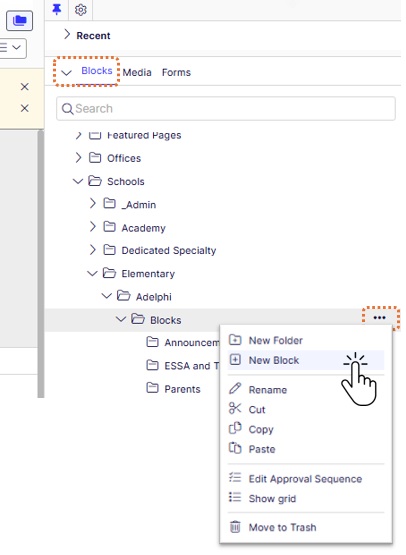
- Go to your office or school Blocks folder
- Click on the Options menu and select New Block
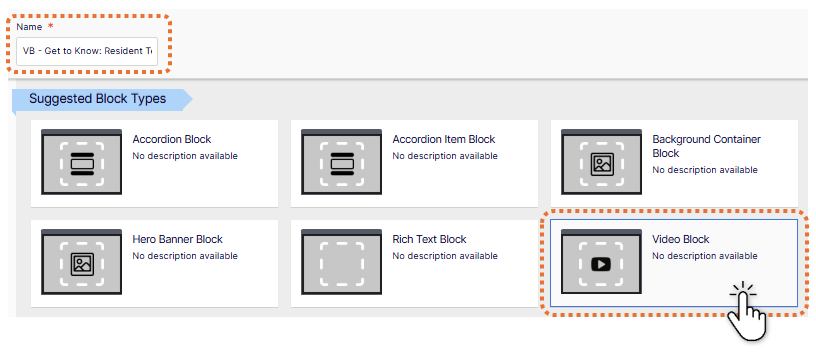
- Fill in the Name field starting with VB prefix
Example: VB - Get to Know: Resident Teacher Program - Select Video Block
- Copy and paste the YouTube link into the YouTube Link field
(If you are adding your own video file, upload the video to your office or school Media -> Images folder. Publish the video. Then drag or select the video using the video file field. View Adding Media for more information.)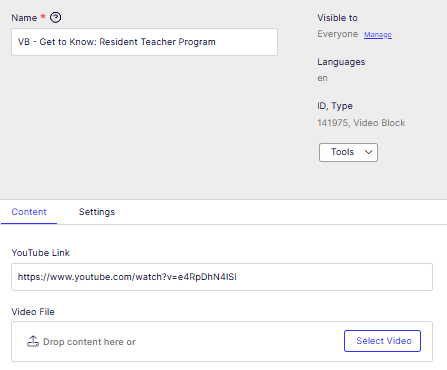
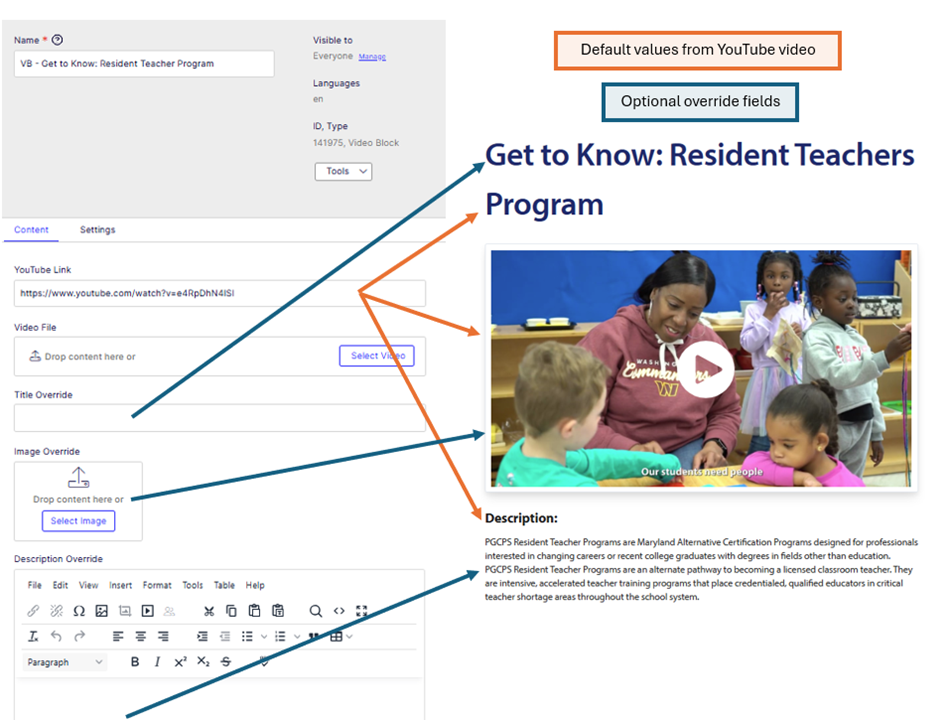
- Optional - Add a different video title, thumbnail or description as needed. (The default values will come from the YouTube video.)
- Publish the block
- Left click and drag the block into a page content area or a container block.
- Publish any pages or assets that have been changed
Using a Rich Text Block to Embed a Video
Get YouTube Embed Code
- On a computer, go to the YouTube video you want to embed.
- Under the video, click Share
- Click Embed.
- From the box that appears, copy the HTML code.
Create & Edit a RT Block
- In your School or Office Block folder create a new Rich Text (RT) block.
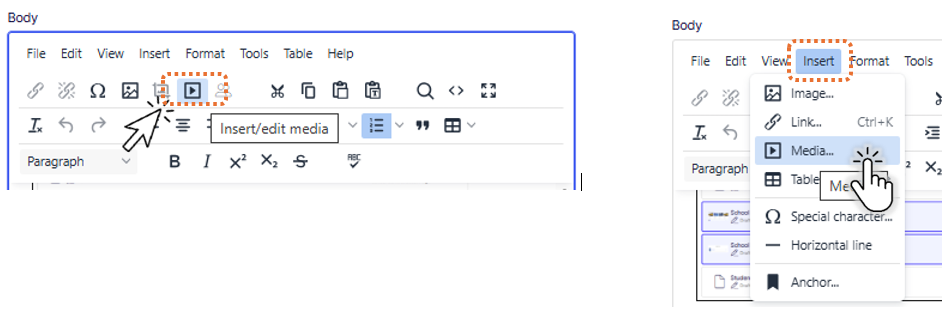
- Select Media from the Inset dropdown:
- Select the Embed tab and paste the copied code:
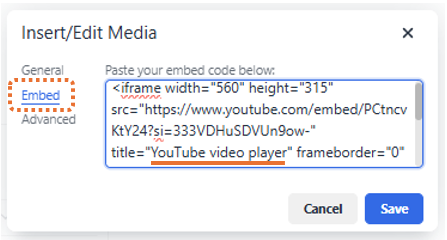
- Edit the pasted code:
- Find the text: title="YouTube video player"
- Replace "YouTube video player" with the "Title of your video"
- Dont forget the quotes ("")
Note: Failing to do this step flags our 508 compliance checker
- Click “OK”
- You should see the embedded video in the RT’s Body property
- Publish and add the block to a page type.
Notes
- The size of the video embed is determined by how you choose to display the block. Width will always be 100%, height comes from the videos aspect ratio from YouTube.