How to Add, Edit or Delete Staff Members
How to add a staff member | How to edit a staff member | How to delete a staff member
How to add a Staff Member to Faculty (Staff) Directory Page
- In the Pages Navigation Pane, click on your Faculty (Staff) Directory Page
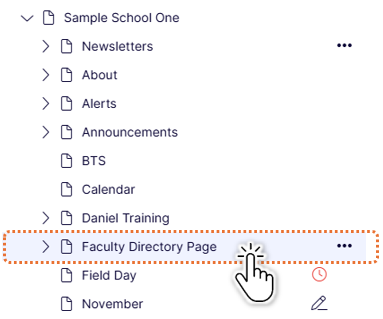
- Use the carrot sign (>) next to the page title to expand the list of staff members.
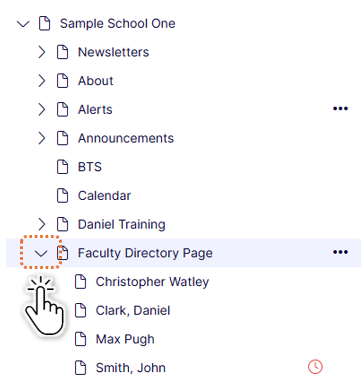
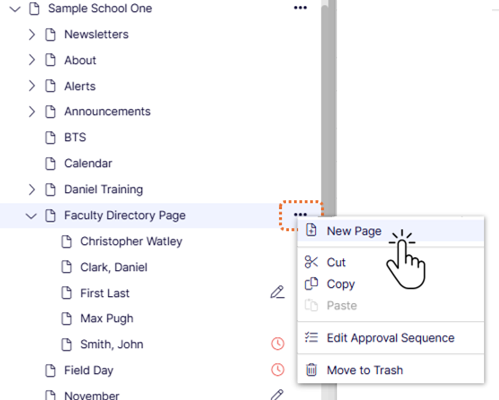
- Click on the options menu on the Faculty Directory Page title which is outlined in orange.
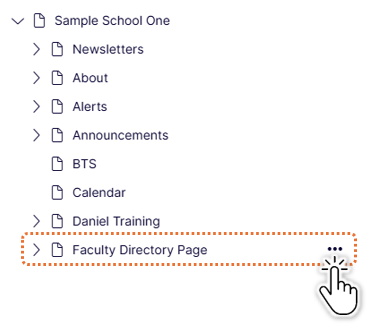
- Select New Page
- Type in the name of your staff member using the existing format, or the format you choose if it is a new faculty directory, "First Last" or "Last, First." This does not affect how it is displayed in the directory web page. (Do not include prefix's like Dr. at this point because it will affect how your directory is listed in your editor. Add that to the First Name field later. See below.)
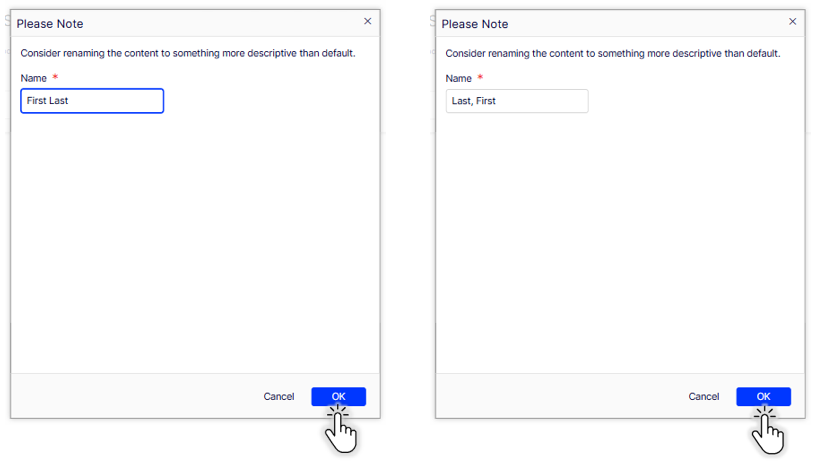
- Click OK.
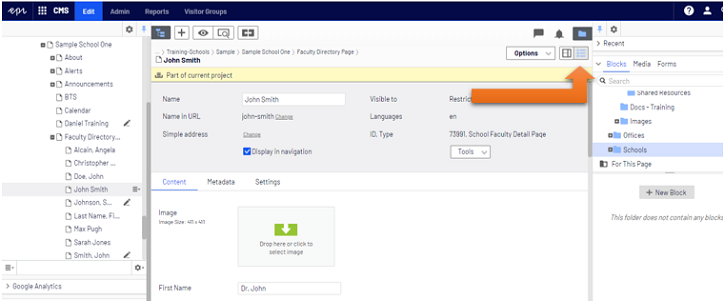
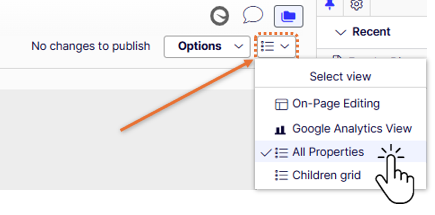
- For this next part, make sure you are editing in the All Properties View (icon next to Options that looks like a bulleted list).
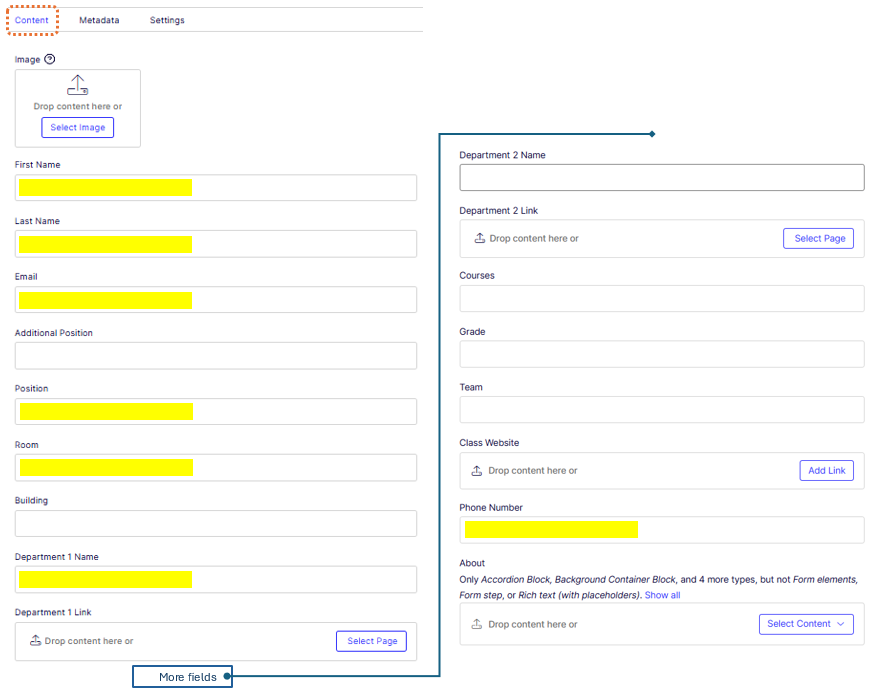
In the center pane of the editor, fill in as much as you would like in the fields on the content tab. We suggest to fill in at least:
- First Name
- Last Name
- Position
- Department Name
- When you have completed filling in the fields, publish the page. After publishing, your new staff member's info will be public on your website's faculty page.
How to Edit a Staff Member on Your Faculty (Staff) Directory Page
- in the Pages Navigation Pane, click on your Faculty (Staff) Directory Page
- Use the plus sign (+) next to the page title to expand the list of staff members.
- Select the name of the staff member you wish to edit to open it.
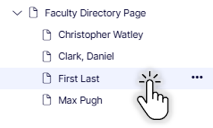
- For this next part, make sure you are editing in the All Properties View (icon next to Options that looks like a bulleted list). In the center pane of the editor, make changes to any field on the page.
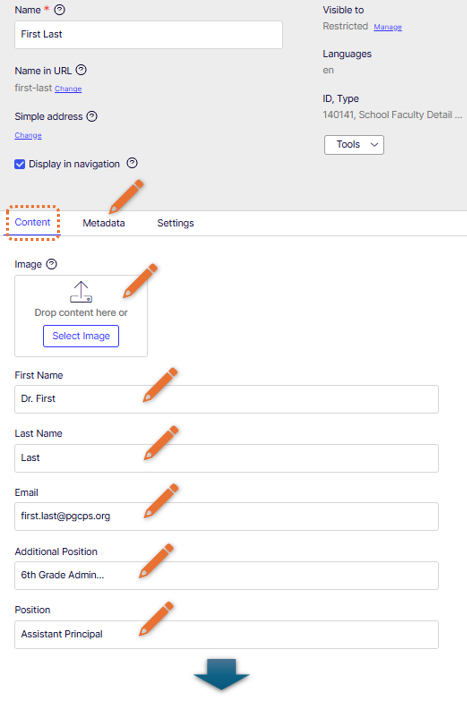
- When you have completed editing the fields, publish the page. After publishing, your staff member's info will be public on your website's faculty page.
How to Delete a Staff Member From Your Faculty (Staff) Directory Page
1.In the Pages Navigation Pane, click on your Faculty (Staff) Directory Page
- Use the plus sign (+) next to the page title to expand the list of staff members.
- Click the name of the staff member you wish to delete. The name should be highlighted in blue.
- On the blue highlighted area of the name, click the options menu and select "Move to Trash".
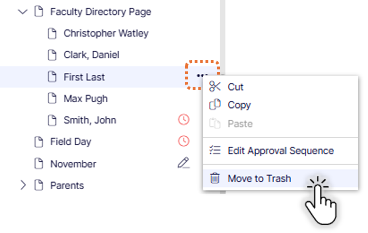
- In the window that pops up, select Move to Trash.
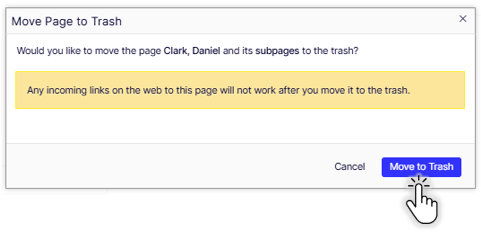
- If this window pops up, it means that the faculty card is used elsewhere on your site. It is best practice to remove the faculty member card or link from any listed assets first. Click View to see the asset. Remove the staff member and publish the asset. Then return to the faculty member's page and follow the steps to delete it. However, if you need to remove the faculty member immediately, select "Move To Trash Anyway." The staff member will be removed from the faculty directory.
Description:
You should be in All Properties View to follow along with this video. The view buttons are in the upper right corner of the central editing area. The All Properties View button looks like a bulleted list.