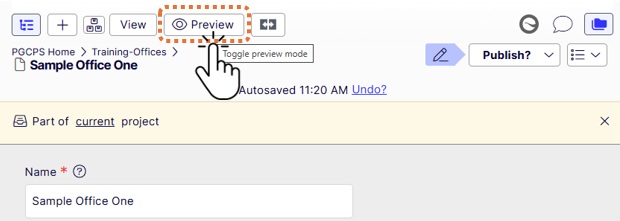
Versions Gadget
What is the Versions Gadget?
The Versions Gadget displays a list of different versions of a page or asset. It also shows which version is the primary draft. In most cases the primary draft is the published version of the content. If you are editing and preview your page, but do not see the changes you have made, it could be because your draft is not the primary draft.
Optimizely: What is the Versions Gadget and How to Add It
Adding the Versions Gadget
Gadgets are editing tools available in the Optimizely Experience Editor. During the Experience Editor Set-Up Process we recommend adding the Versions Gadget. Depending on how a page or asset is edited, when an editor previews the page, they might not see the changes they have made. This is because previewing defaults to show the primary draft. In some cases, the new draft the editor has created is not the primary draft. You can use the Versions Gadget to select different versions of the content and change the primary draft so you are able to preview your draft.
Adding the Versions Gadget to the Navigation Pane
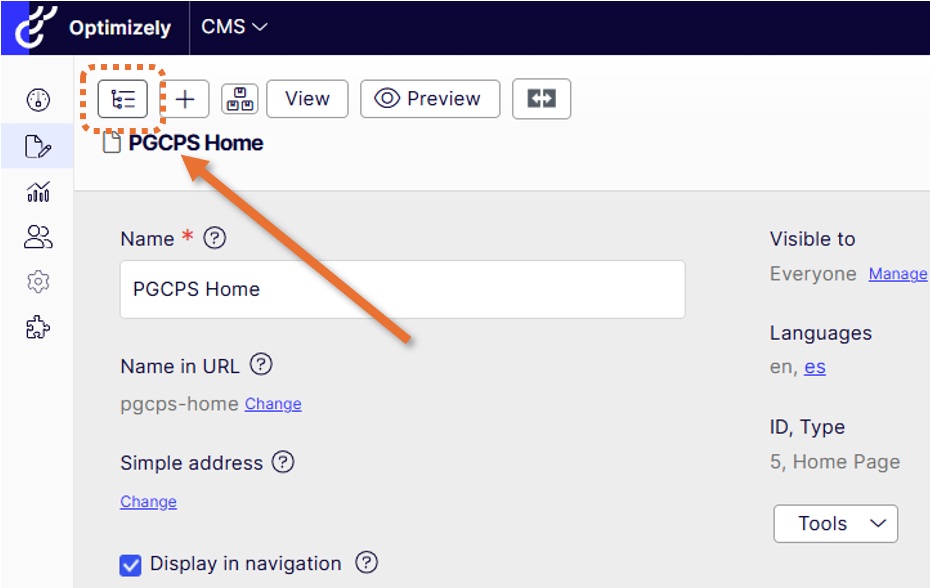
- Open your Navigation Pane by clicking the Navigation Pane button.
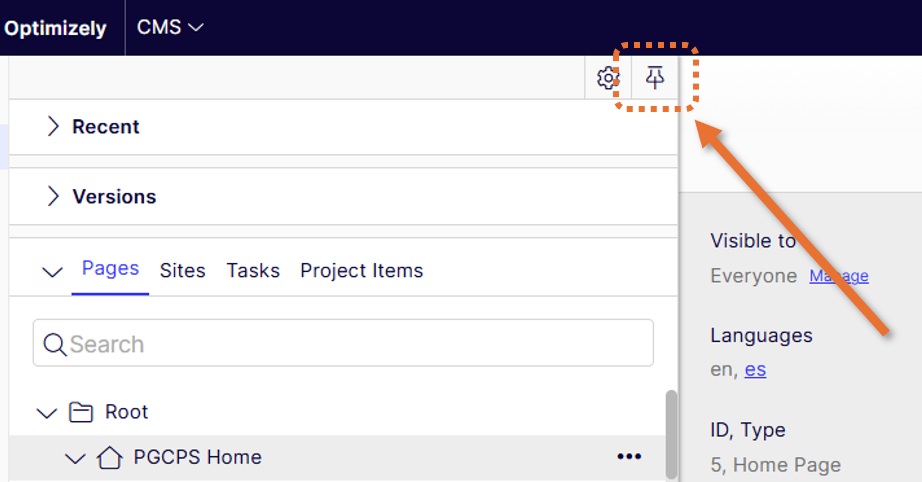
- Click the Pin button to pin the pane open
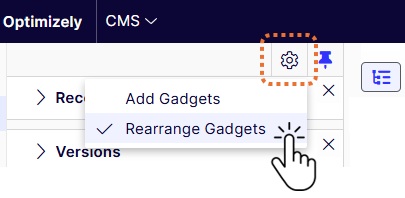
- Click the Settings button
 (gear) and select Add Gadgets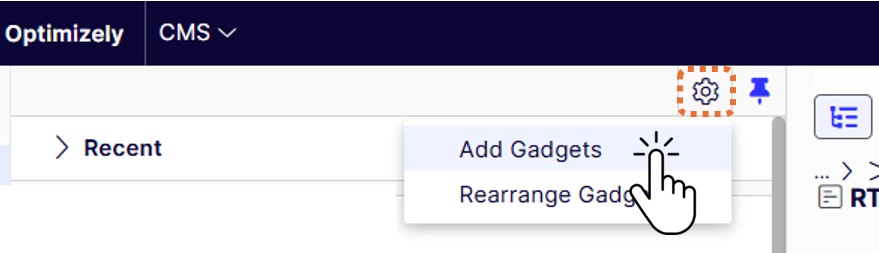
- Search for the Versions Gadget by starting to type "versions" into the search box
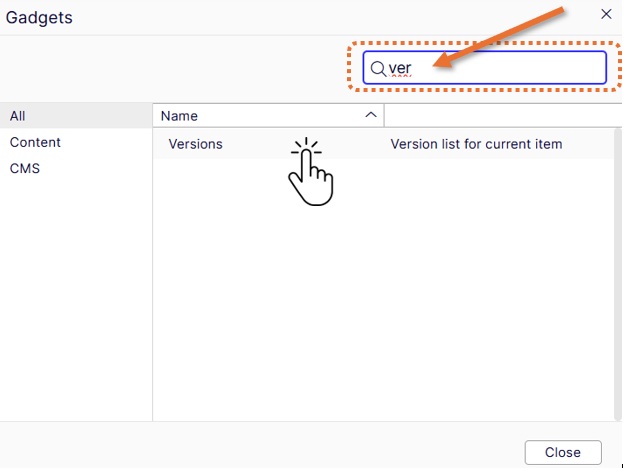
- Click on Versions
- The gadget has been added to the bottom of the Navigation Pane. You can scroll down to see it.
Rearranging Gadgets
School based web editors may use the Versions Gadget more, so you may want to move the gadget to the top of the Navigation Pane.
- (Optional) Minimize gadgets to make rearranging easier by clicking the carrot to the left of the gadget name.
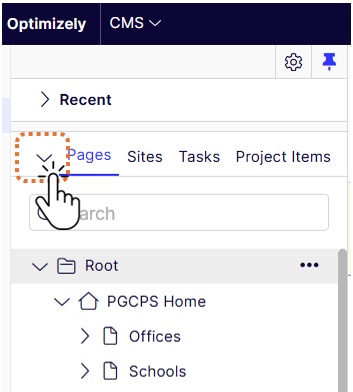
Gadgets Minimized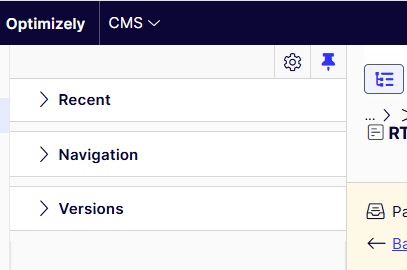
- Click on the Settings button (gear) at the top of the Navigation Pane
- Select Rearrange Gadgets
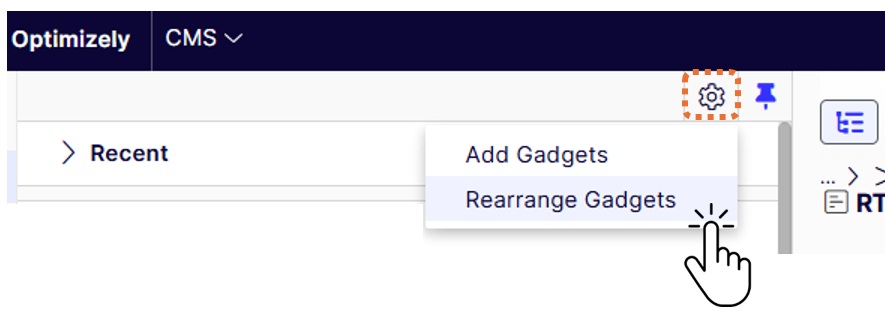
- Left click and drag gadgets where you want them. In this case dragging the Versions Gadget above the Navigation gadget.

- Turn off Rearrange Gadgets by clicking the Settings button and selecting Rearrange Gadgets again.
Selecting the Primary Draft Using the Versions Gadget
The Versions Gadget allows you to select different versions of a page or asset. You can also use it to set the primary draft. If you are not seeing changes you have made, your draft might not be the primary draft.
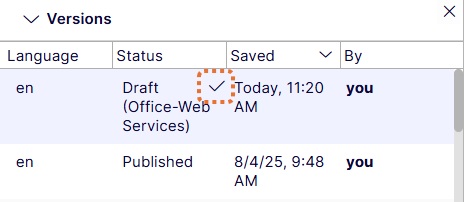
The primary draft is indicated by a check-mark in the Versions Gadget.
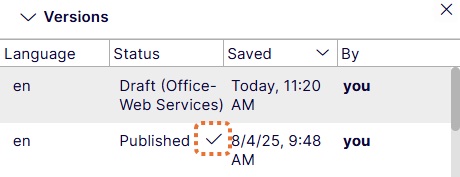
Here is how to change the primary draft using the Versions Gadget.
- Open the Versions Gadget by clicking the carrot icon

- Click on the draft you want to preview
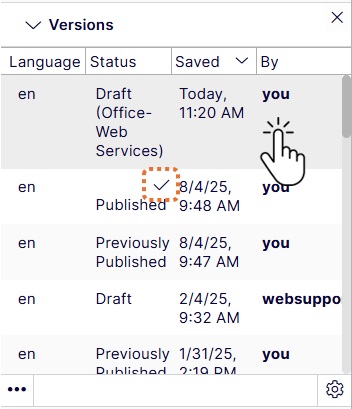
- From the Versions Gadget options menu select "Set as Primary Draft"
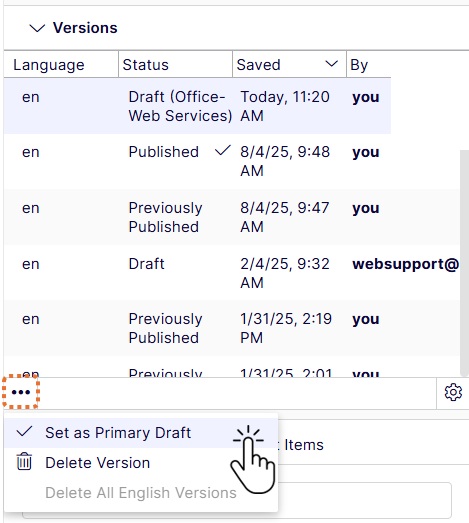
- The draft should now have a check-mark next to it's status
- Now you are able to preview your web page. Note: Blocks cannot be previewed. You have to preview the page they are used on to see changes you have made to a block.