How to add viewers to your staff portal community
How to add viewers to your staff portal community
How to Add Email Addresses One-at-a-Time
- Click on the link to Microsoft Entra provided to you by the Web Services team.
- Login with your PGCPS email address and password at the Microsoft login page
- You should see a page with the name of your community viewer's group and Members.

- Click on add members.
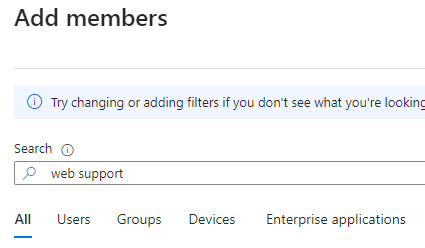
- Start typing email address or name of the person you wish to add.
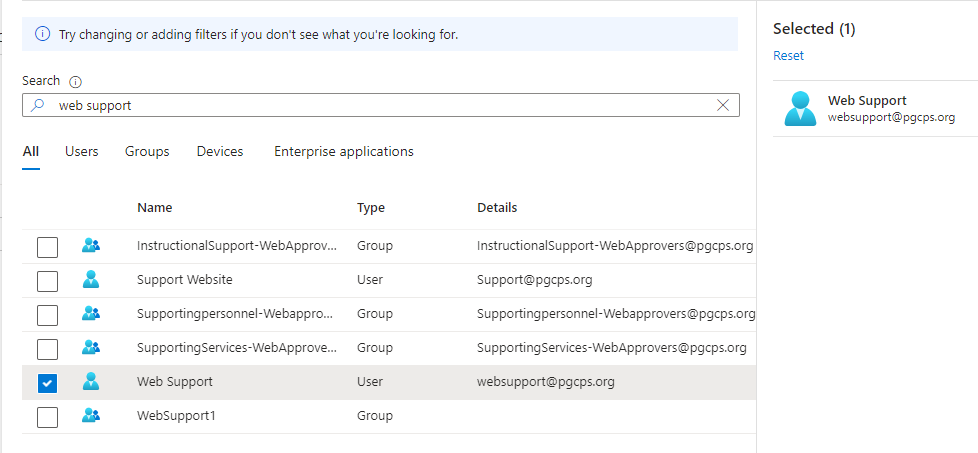
- Put a check mark next to the one you wish to add.
- At the bottom of the selection window, click "Select."
- There will be a message at the top right indicating the user was added. You can refresh the page after a minute or two to see the member in the list.
How to Add a Batch of Email Addresses
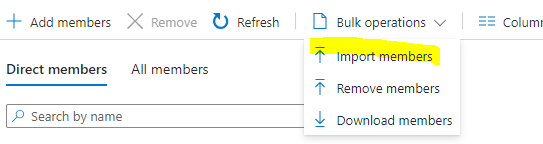
- To add a bunch of viewers all at once, click on Bulk Operations and select Import members.
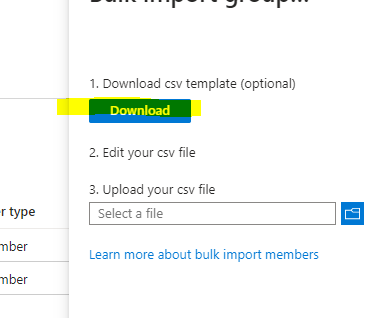
- Download the csv template.
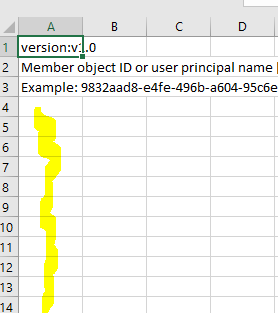
- Open up the template.
- Copy and paste the email addresses only into the first column, after the first three lines.
- Save the template.
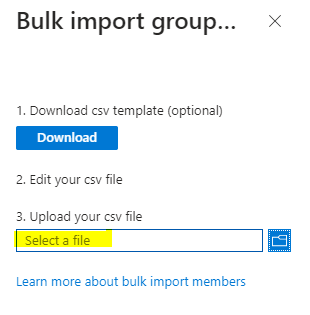
- Return to the Bulk import window.
- Select the csv file under 3. Upload your csv file
- It will indicate whether your upload was successful.
- You can refresh the page after a minute or two to see the new member in the list.